ChromeOS
To play your Slimme Playr channel automatically on a ChromeOS device, you want the device to start automatically in full-screen mode when you turn it on. The only way to accomplish this is to install a ChromeOS kiosk app, like the Slimme Playr app for ChromeOS. Even though our app is free, Google requires you to buy a Chrome kiosk license to install a kiosk app. Requiring this license is, unfortunately, the new policy by Google as of ChromeOS version 70. A license costs $53/year per device. The upside is that it enables you to remotely manage the device from your Google Chrome dashboard.
Buy Your Own License
You can buy a license from Google yourself. Unfortunately, not directly: you need to find a Google partner that will sell you a license. Once you have your license you need to setup your Google Chrome environment as described in the ChromeOS Via Chrome Device Management.
Buy A License Via Slimme Playr
The previous process can be quite tedious and complicated. That is why we also offer the option to buy a license through us. With this you get your own login to manage your devices within the Slimme Playr Chrome environment. There is no surcharge, you pay the €45/year ($53/year in USD) per device that Google charges.
This is the process:
- Mail us a request for one or more Chrome licenses with the date when you need them.
- We order the licenses from our Google partner (which might take up to 3 workdays).
- As soon as we receive the licenses, you will get a login for the Slimme Playr Chrome domain with which you can login to your ChromeOS device, as described in the procedure below.
- Mail us when you have enrolled your ChromeOS device so that we can make it available for you in the Slimme Playr Chrome environment from where you can manage the device remotely.
Enrolling A ChromeOS Device
If the device has been logged onto even once, you will need to wipe (reset) it first before proceeding. The installation procedure below will not work otherwise.
- Connect a keyboard and mouse (or something similar, like a keyboard with an integrated touchpad) to the device and turn it on.
- Click the Get started button
- Under your Chromebox setup, select For work.
- Then choose to enroll the device
- Enter the e-mail address of the user account associated with your Google license and click Next
- Enter the password of the user account and click Enroll kiosk or signage device.
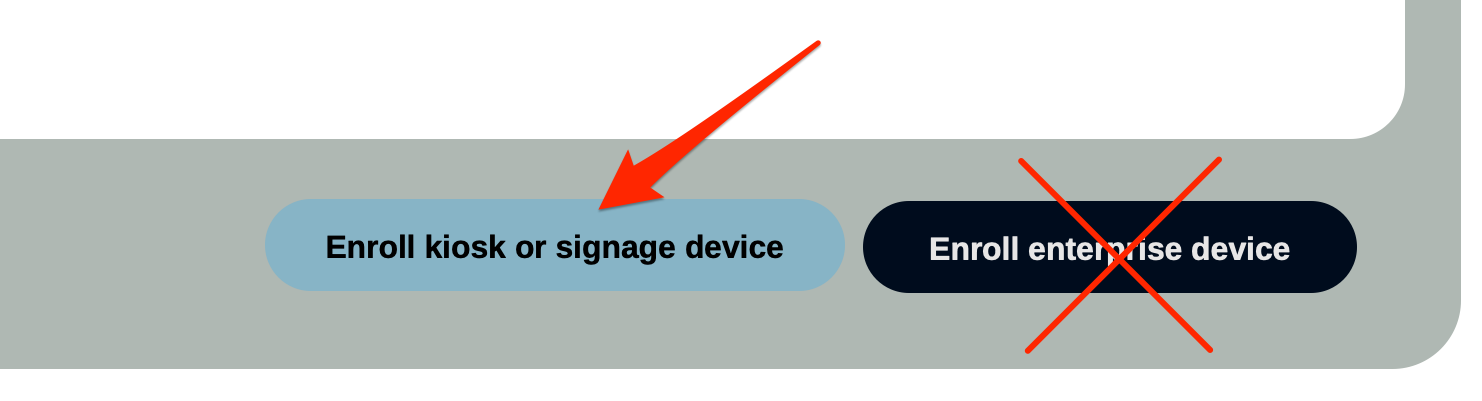
- ChromeOS will now update ChromeOS itself and install the Slimme Playr kiosk app and set everything up as defined in the device management dashboard.
- After a few minutes, everything should be ready. Turn off the device and turn it back on.
- The Slimme Playr kiosk app will start up and show the registration code. Follow the steps to register your player to finish the Slimme Playr setup.
Currenlty the Chrome browser by default does not allow access to resources on the local network (LAN). So if you want to use sources/servers on your LAN with our apps these sources need to be white listed. Please contact us with a list of URLs of the sources you want to use and we will configure your players so this is possible.
We recommend using a wired network connection, whenever possible.
Changing Device Settings Afterwards
Since nearly all settings of a specific ChromeOS device can be set from the Device Management dashboard it is very unlikely that settings need to be changed on the device itself. Should that be necessary it is still possible to do that, do the following:
- Turn off the ChromeOS device.
- Connect a keyboard and mouse.
- Turn it back on.
- On the white startup screen it will say Press Ctrl + Alt + S to leave kiosk mode; do this by pressing the Ctrl + Alt + S keys simultaneously. You will now see the normal login screen.
- Change any of the settings as needed.
- Restart the ChromeOS device.